View
After performing a data read, you can view the tags associated with it. This page explains how to access and interpret tag information.
Viewing Tags on a Data Read
Steps
-
Navigate to the data read details (use Tool Usage Data Reads to find a specific data read - see the Search page for instructions)
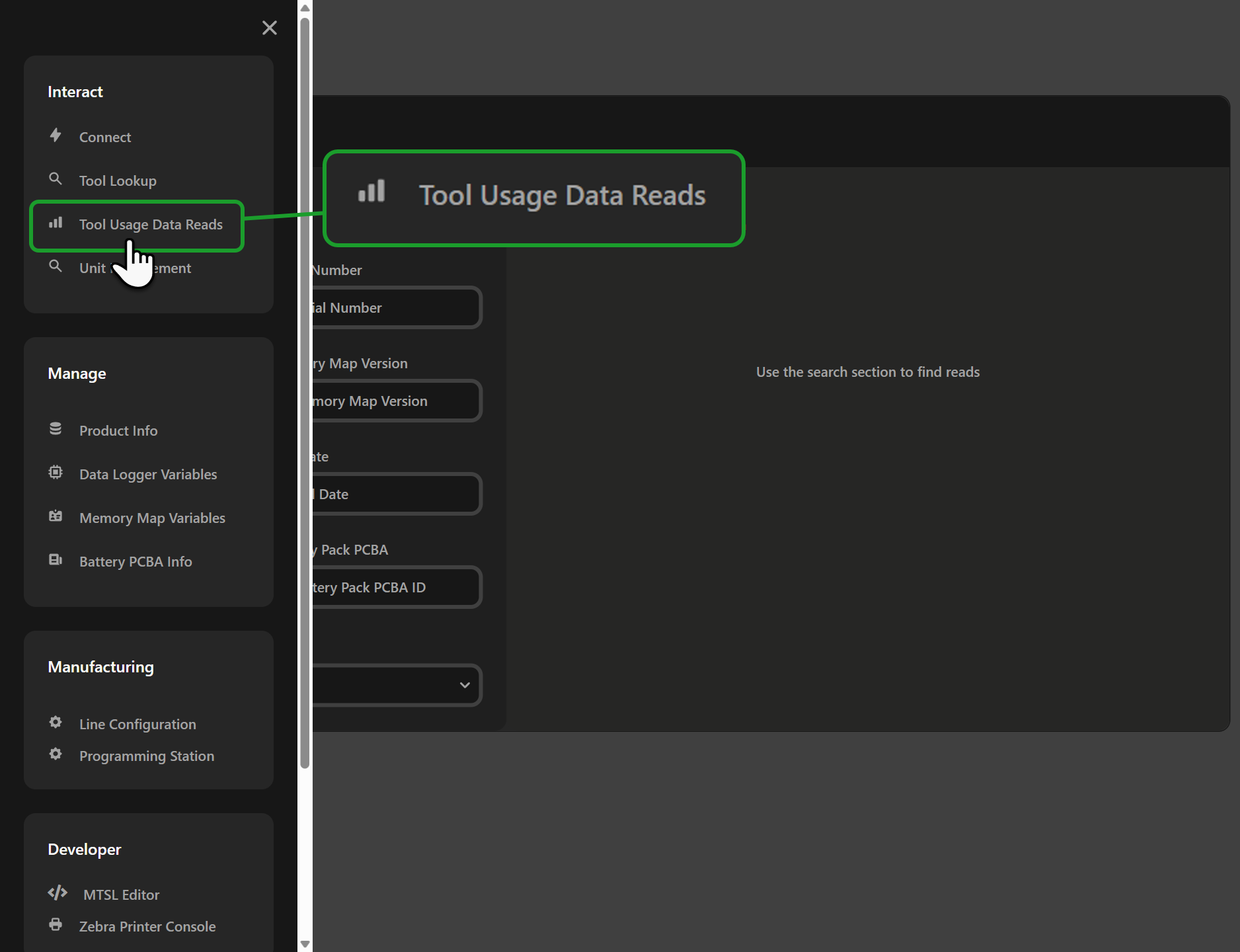
-
Scroll to the Tool Usage Data Tags section to see all tags associated with this data read
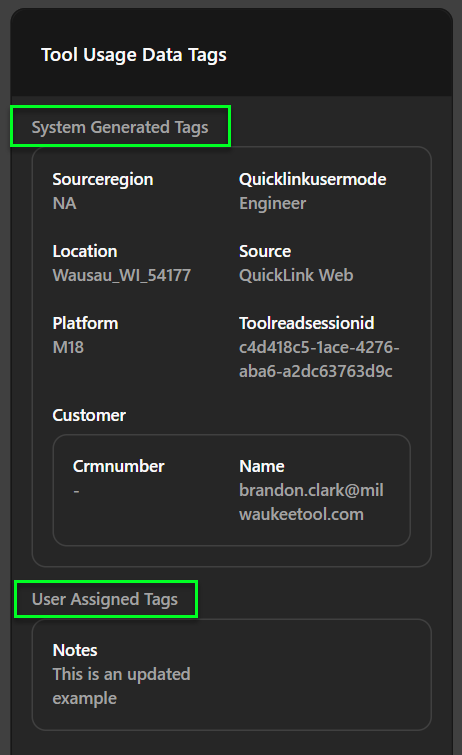
Tags are organized into two categories:
- System Generated Tags - Automatically populated by the system
- User Assigned Tags - Manually assigned by users
Video Walkthrough
The following video demonstrates the steps above:
Understanding Tag Display
System Generated Tags
System tags are automatically populated when a data read is uploaded. You cannot modify them.
For the complete list of system tags and their descriptions, see the Overview page.
User Assigned Tags
User-assigned tags display the values that were manually set during or after the data read. These may include:
- String values - Displayed as text
- Number values - Displayed as numeric values
- Boolean values - Displayed as true/false
- Object values - Displayed as expandable JSON
- Enum values - Displayed as the selected option
- Array values - Displayed as a list
Tag Value Details
Click on a tag to expand its details and see:
- Tag Name - The identifier for the tag
- Tag Type - The data type (string, number, boolean, object, enum, array)
- Value - The current assigned value
- Input Mode - Whether it's system-generated or user-assigned